


Changelog
July 1, 2026
.svg)
.jpg)
What if the biggest bottleneck in your product development cycle is not your engineers' skill, but the gap between a finished design and the first line of code?
For most teams, the design handoff is where momentum slows. Designers share polished Figma files. Developers open them and spend days, sometimes weeks, turning every margin, component, and layout into working code. By the time they finish, something has already changed.
Design-to-code AI tools are changing this. This guide explains how they work, what to look for, and how to choose the right one for your team in 2026.
AI to convert design to code takes visual UI designs, usually from tools like Figma, and converts them into working frontend code. Instead of a developer looking at a mockup and writing every element, the AI reads the design and creates the code.
The goal is not just speed. It also improves accuracy and consistency. It helps developers focus on what matters more, like logic, interaction, and integration.
How the Design to Code Workflow Works
Most modern platforms follow a simple process:
What Modern Design to Code Tools Should Handle
Not all tools offer the same value. The right ones in 2026 should:
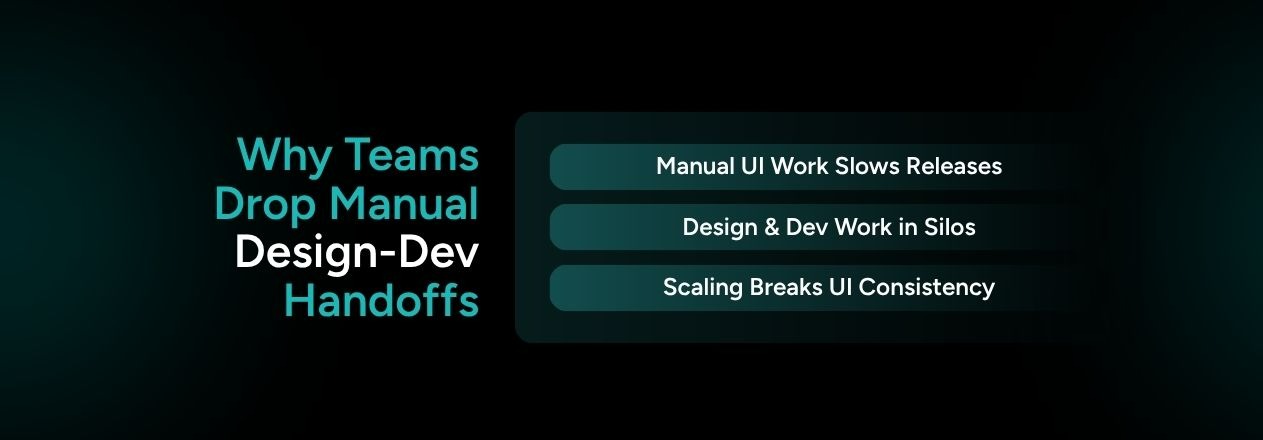
1. Manual UI Development Slows Releases
Developers spend too much time on work that does not need deep expertise. Recreating UI from design files feels repetitive and frustrating.
The real impact shows up in:
2. Designers and Developers Work in Separate Systems
Figma works well for visuals. It does not clearly show responsive behavior, structure, or interaction states to developers. This gap creates mistakes.
Common friction points:
3. Scaling Products Creates Design Inconsistency
A small app is easy to manage. A large platform with many components makes things harder. You start to see gaps over time.
Teams at scale deal with:
Suggested Read: Bridging the Gap: How Design-to-Code Platforms Improve Designer-Developer Collaboration
1. Production Ready Code Generation
The most important thing to check is simple. Would a developer actually ship this code? Many tools show great results in demos but fail in real use.
Good output includes:
2. Responsive Layout Generation
This is where many tools fail. Code with fixed positioning may look fine on one screen but break on others.
A good tool should:
3. Integration with Developer Workflows
If a tool forces a new way of working, teams will resist it. The best tools fit into your current setup.
Look for:
4. Support for Design Systems
The best tools do more than create separate components. They connect with your design system and keep things consistent.
Key capabilities include:
1. Code Quality and Maintainability
Do not focus only on how it looks. Always check the code quality as well. If a developer needs hours to clean it before use, the tool does not save time.
Check for:
2. Output Accuracy Compared to Design
Pixel accuracy matters, but other details matter too. Spacing, typography, and alignment all affect how much fixing you need later.
Test the tool with your real design files before you commit to it.
3. Customization and Developer Control
AI helps you get most of the work done. Developers still need control over the rest. The best tools let you edit, extend, and override the code easily. They do not lock you into a closed system.
4. Long Term Scalability
A tool that works for a simple page should also support a large product.
Before you choose, check:
To get the best results from design to code tools, you need more than just the right platform. You also need a clear process that keeps your design and code clean, consistent, and easy to manage.
1. Organize Design Files for Structured Output
Your code quality depends on your Figma file, so clean input leads to clean output. Start by grouping related elements in a clear and logical way.
Use meaningful frame names to keep everything easy to follow. Also, avoid very deep layer nesting, since it creates complex and hard-to-read structures.
2. Use Consistent Design Tokens
Once your structure is clear, focus on consistency. When you keep tokens consistent, your CSS becomes easier to manage. Use the same color, spacing, and font values across your design.
Avoid one-off values, as they create repeated CSS rules. Treat design tokens as a shared contract between design and code to keep everything aligned.
3. Review and Clean Generated Code
After generating code, take time to refine it. Generated code gives you a starting point, not a final version. Remove repeated styles and combine similar values where possible.
Check accessibility by adding proper ARIA labels, semantic tags, and meaningful alt text. Also, clean up any inline styles added by the tool.
4. Optimize Performance After Export
Once your code looks clean, move to performance. Generated code often includes extra parts, but you can fix this quickly.
Compress images and add lazy loading where needed. Remove unused styles from your stylesheet. Reduce JavaScript size with code splitting and proper optimization.
5. Test Layouts and Interactions Across Devices
Finally, make sure everything works as expected. Treat generated code like any other code and test it properly. Check across browsers like Chrome, Safari, Firefox, and Edge.
Test on different screen sizes, from mobile to large desktop. Also, verify all interaction states such as hover, focus, disabled, and active.
Suggested Read: 7 Enterprise Risks in Figma-to-Code Workflows (And How Codespell Mitigates Them at Scale)

CodeSpell from SoftSpell does more than simple UI conversion. It helps you move from Figma designs to structured frontend code that fits real development workflows. It focuses not just on speed, but on code you can actually use and build on.
From Figma to structured frontend code
CodeSpell’s Figma design-to-code AI lets you convert designs into working code while keeping structure and consistency in place.
Built for real development workflows
CodeSpell does not create isolated UI code. It supports your full development process from start to finish.
Reduce repetitive engineering effort
CodeSpell removes manual work across the SDLC so you can focus on logic and features. You want to spend time building real features, not repeating setup work, right?
CodeSpell presents itself as a design-to-code solution that helps you move faster while keeping structure, consistency, and maintainability strong.
As you move into 2026, think about where your engineering time really goes. How much goes into building, and how much goes into translating designs into code?
UI design-to-code AI does not replace your developer’s thinking. It removes repetitive work that does not need deep focus. The teams that see real value do not just adopt tools quickly. They choose the right tool, prepare design files well, and let developers focus on what truly matters.
Take time to evaluate properly. Test tools with real design files. Select the tool that fits into your workflow instead of forcing you to change it.



July 1, 2026
Don’t Miss Out
We share cool stuff about coding, AI, and making dev life easier.
Hop on the list - we’ll keep it chill.

© 2026, SoftSpell. All Rights Reserved


